|
MasterkeyPro™


Create-A-Card™


 |
|
MasterkeyPro 2006
 Here's a look at the MasterkeyPro
2006
working environment. The toolbars located at the top
and bottom provide all the commands you need to get around and perform
all the common tasks. The toolbar on the top of each Report Editor
window provides all the commands you need to edit your reports including
Cut, Copy and Paste, Cross-Keying, Print and more.
Our new Pinup Bar (at the bottom) lets you save and retrieve up to nine reports for each
system you create instantly.
This is very handy! Save any report (or document) to any of the 9
folders along the bottom with just a click (the folder will turn
yellow). Then just click the folder to open it. Type or paste what ever
you want including images if you want, then click the save button. Walla,
it's there next time you click the folder. What a terrific time saving
feature.
|
Create System Window
(General Information Tab) |
|

Click for Larger View
|
This is the general system information.
Choosing a lock from the Lock Manufacturer list will automatically
enter all the lock information for you. This lock list is fully
customizable, or you can add new locks to it at anytime.
|
|
|
Customize
(Create System
Window) |
|

Click for Larger View
|
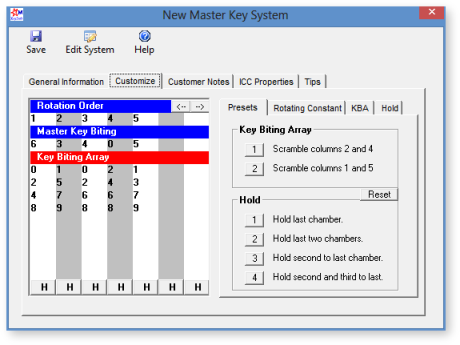
The Customize window
gives you Preset buttons to work with. Some custom settings just work better than others, the
Presets tab lets you quickly create custom systems using some of the
best settings. Or you can manually control custom settings allowing you
to recreate virtually any existing system.
|
|
|
ICC Properties Tab
(Create System
Window) |

Click for Larger View |
Interchangeable Cores (ICC's) are getting used more and more everyday, so we've included
the following ICC's, All Best/Falcon types, Corbin/Russwin, Sargent,
Medeco Biaxial and Assa. The Control
Key Notes remind you of any rules you must follow for the selected ICC.
Making ICC's easy.
|
|
|
Custom
Key ID Creator |

Click for Larger View |
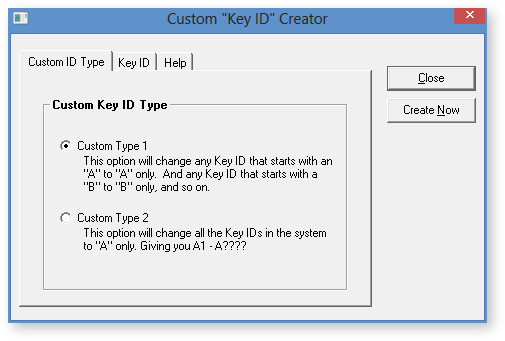
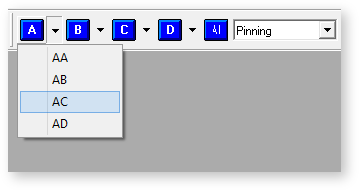
Use this feature to create "Custom Key
ID's" for your systems. You may not always want your systems divided up
into the standard "AAA, AAB, AAC, AAD etc." Now you can choose
from two different types of customizing, as shown below.
|
|
|
Custom
Key ID Creator |

Click for Larger View |
In addition to that, you can also
change the Symbols that are displayed. For example. If you don't want to use
the standard A,B,C,D type of labeling, as shown above. Just click the
"Key ID" tab and change it to whatever you want.
|
|
|
Description Database |
Click for Larger View
|
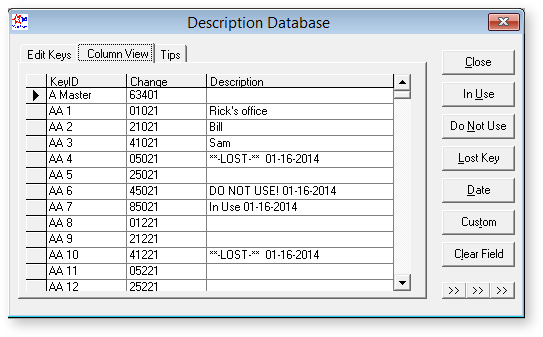
Although you can enter Descriptions while viewing keys in the Data
View the Description Database makes it
easier to mark keys "In Use" "Lost" etc. with the
quick entry buttons.
The new Column view lets you see
more keys at a time making it easier to find what you need.
|
|
|
Quick Menu |

Click for Larger View |
We've added a Quick "Drop Down" Menu so you can display reports
that target the groups you need faster than
ever.
|
|
|
Report Editor |

Click for Larger View
See The New
Data
View and Data Report Screen
Shots
|
The Report Editor has many new features.
This new Report Editor is in Rich Text Format (RTF). What that means is
you can add all the standard text formatting, color, bold, center, etc.
This RTF format also makes it possible to hold a lot more information
than the older plain text type format used in our older versions.
Also new to the Report Editor is the Refresh
button. This makes it faster and easier to work with reports. For
example, if you're looking at a Key Tracking report and you want to get
rid of it and open the Pinning Report, just change the Report type (from
the drop-down list) then click Refresh.
|
|
|
|
|
|
|
|
|
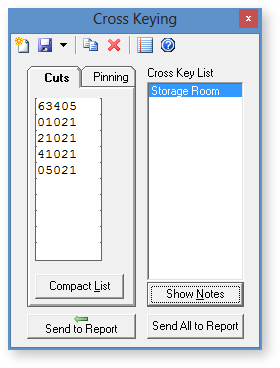
Cross
Keying |

Click for Larger View |
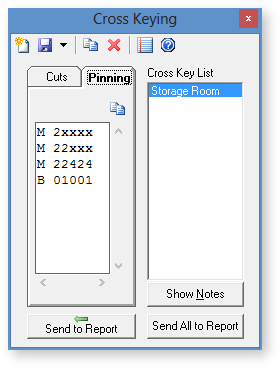
Also when you're Cross-Keying you can
choose the keys you want to cross from any report. Then click the Refresh
button to run the Cross-Keying report.
To cross keys just double click the
bitting, right
click, and choose Cross-It.
|
|
|
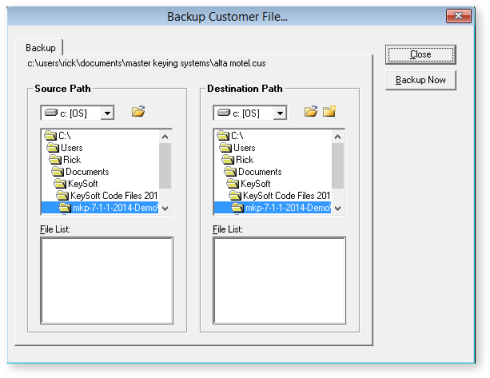
Backing up Customer Files |
|
|
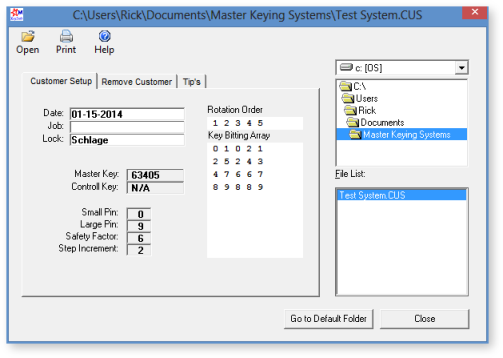
When you're on the go you can backup your
customer files to floppy disk. This makes it easy to keep the Laptop in your
van in sync with your office PC.
|
|
Data
View and Data Report Screen
Shots
|
|
|